

How to Hide Likes on Instagram (2026 Step-by-Step on Your Posts, Others', Reels & Stories)
Updated: Jun 8

Yes, you can hide likes on Instagram in 2026 — but there are four different toggles depending on what you actually want to hide. On your own posts, you can hide the like count per individual post (before or after publishing) or set a global default that hides counts on every new post you publish. You can also hide other people's like counts so they no longer appear in your feed (this only affects your view). Reels and Stories have their own visibility settings — view counts on Reels behave a little differently from photo-post likes, and Stories show viewer lists only to you anyway. This guide covers each surface step-by-step on iOS, Android, and the Instagram web app, with the troubleshooting and brand-account caveats most articles miss.
Why Instagram Lets You Hide Likes
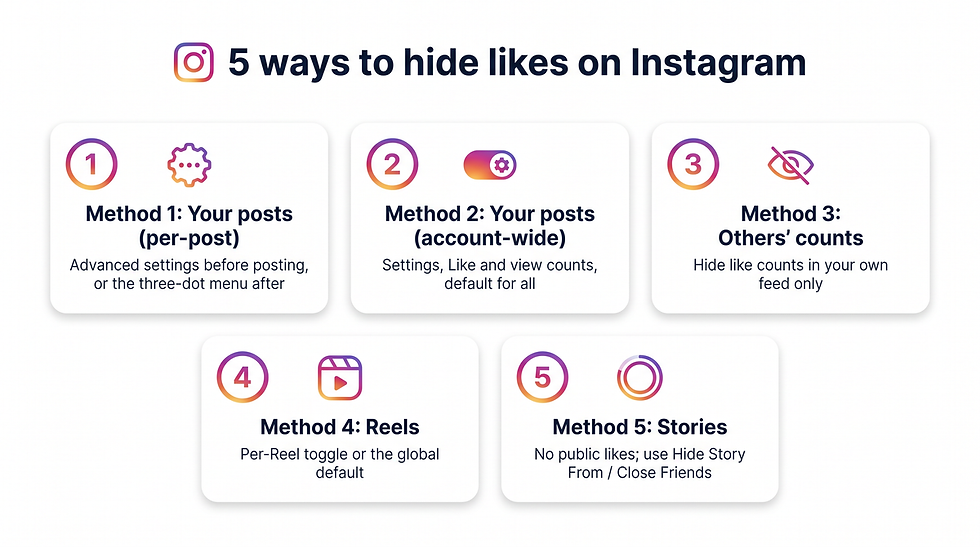
Five ways to hide likes on Instagram, by surface: per-post and account-wide on your own posts, others' counts in your feed, a per-Reel toggle, and Stories (which have no public like counts).
Instagram first tested hiding like counts in 2019 in Canada and rolled the option out globally in May 2021. The framing from Adam Mosseri at the time: reducing the social pressure of public like counts, especially for younger users and creators. Likes themselves were not removed — only their public visibility became toggleable. For the canonical step references, see the Instagram Help Center on hiding likes and view counts.
What's true in 2026:
The hide-likes toggles are stable and live on every account (personal, creator, business) on iOS, Android, and the web.
Hiding a like count is a display setting, not a privacy setting — Instagram still counts every like under the hood. Creators and admins can still see exact numbers in their own Insights and analytics dashboards.
Instagram has not announced any plan to retire the feature, and it remains opt-in by default (likes are visible until you turn them off).
Method 1: Hide Likes on YOUR Posts (Per-Post)
This is the fastest path if you only want one specific post to hide its like count. The same toggle is available both before you publish and after — you can flip it on or off any time.
Before publishing (new post)
Tap the + icon in the top right → choose Post.
Pick your photo/video → tap Next → apply filter/edit → tap Next again.
On the final caption screen, scroll down and tap Advanced settings.
Toggle Hide like and view counts on this post on.
Go back and tap Share.
After publishing (existing post)
Open the post on your profile.
Tap the ... (three-dot menu) at the top-right of the post.
Tap Hide like count.
The change applies immediately — followers will no longer see the number under the post, only the "Liked by username and others" line.
On iOS
The flow above is the iOS flow. The Advanced settings label appears at the bottom of the share screen on the Instagram iOS app (version 2024+).
On Android
Identical to iOS. The Android app exposes Advanced settings at the bottom of the same final share screen, and the existing-post path uses the same three-dot menu.
On Web (instagram.com)
The web app added parity for this toggle in 2022:
Click the + Create icon in the left sidebar.
Upload your photo/video → click Next twice (crop and filter).
On the caption screen, expand Advanced settings.
Toggle Hide like and view counts on this post.
Click Share.
For an existing post on web, open the post, click the ... menu at the top, and choose Hide like count.
Method 2: Hide Likes on YOUR Posts (Globally / Account-Wide Default)
If you want every new post you publish to hide its like count automatically — without having to flip Advanced settings every time — Instagram has an account-wide default in Settings.
Go to your profile → tap the ☰ menu (top right) → Settings and activity.
Tap What you see.
Tap Like and view counts.
Toggle Hide like and view counts on.
What this does:
Every new post you publish from now on hides its like count by default.
It does not retroactively hide counts on posts you already published — you'll still need to flip those one by one via Method 1's "After publishing" steps, or accept that the global toggle only governs the default going forward (in our testing some app versions do apply it retroactively to your own posts; behavior here has drifted across releases, so confirm on your own profile after toggling).
This setting is independent from Method 3 below (hiding other people's like counts).
Method 3: Hide Other People's Like Counts (In YOUR Feed)
This is the toggle most people are actually looking for when they search "how to hide likes on Instagram" — they want to stop seeing exact like counts under everyone else's posts as they scroll.
Go to your profile → ☰ menu → Settings and activity.
Tap What you see.
Tap Like and view counts.
Toggle Hide like and view counts from others on.
What changes:
Every post in your feed, on Explore, and on profiles will show "Liked by username and others" instead of an exact number.
This only affects your view — other people still see the like counts on those posts as the post owner has configured them.
The setting is reversible at any time; toggle it back off and counts reappear.
Method 4: Hide Likes on Reels
Reels use the same hide-toggle as photo posts, but the UI labels view counts and like counts together because Reels are video-first.
Before publishing a Reel:
Tap + → Reel → record/upload your video → Next → Next.
On the caption screen, expand Advanced settings.
Toggle Hide like and view counts on this post on.
Tap Share.
On an existing Reel:
Open the Reel from your profile or the Reels tab.
Tap the ... menu.
Tap Hide like count (this also hides the public view count display on the Reel for some app versions; the behavior is one toggle covering both metrics).
Done — the change takes effect immediately.
Account-wide, Method 2's Hide like and view counts toggle also covers your Reels going forward.
Method 5: Hide Likes and View Counts on Stories
Stories work differently from feed posts:
Stories do not have public likes the way feed posts do — when someone "likes" a story, only you (the story owner) see the heart and the username in the viewer list.
The viewer list (who watched your Story) is always private to you anyway — nobody else can see who viewed your Story.
What Stories do have is a quick-reaction emoji bar and DM replies, which are also private between you and the sender.
So the practical question becomes: "Can I hide who has viewed/liked my Story from myself?" No — by design, the viewer list is the analytics view for Story owners and cannot be turned off. You can, however:
Hide the Story from specific people: Settings and activity → Story → Hide story and live from → pick the accounts you don't want to see your Story at all.
Close friends only: tap the green Close Friends icon when publishing to limit visibility to your Close Friends list.
Archive the Story when it expires: Settings → Archive → toggle Save to archive off if you don't want any record.
If you're trying to hide your own activity (whose Stories you've watched) from the people whose Stories you watched — that's not possible without a third-party tool, and most third-party "anonymous Story viewer" apps violate Instagram's terms of service and frequently get accounts limited.
What Happens to Likes You've Already Hidden
This is the part most consumer guides skip but creators and brands care about:
You still see your own counts. Open any of your hidden-count posts and tap "Liked by username and others" — Instagram shows you the full liker list and the exact total.
Admins still see Insights. Business and creator accounts retain full like, save, share, comment, and reach numbers inside the Insights tab. Hiding likes is a display change, not a metrics change.
The algorithm is unchanged. Meta has been clear publicly that hidden like counts do not change how the recommendation system ranks your content. Posts with hidden counts are not down-ranked.
Sponsored / branded-content posts: advertisers and partners may contractually require visible like counts for proof-of-engagement. Hiding likes on a paid collaboration without partner approval can breach the contract — check the brief.
Common Issues + Troubleshooting
Symptom | Likely cause | Fix |
|---|---|---|
"Hide like count" option missing on three-dot menu | App version older than ~v2022.10 | Update Instagram in App Store / Play Store |
Toggle works on iOS but not Android (or vice versa) | Staggered server-side rollout of a UI tweak | Force-close and reopen the app; if still missing, log out and back in |
Global toggle (Method 2) didn't hide counts on old posts | Retroactive behavior varies by app version | Hide each old post individually via Method 1's "After publishing" path |
Can't see the toggle on a Reel | The Reel was published before mid-2022 | Hide via the three-dot menu post-publish; some legacy Reels need to be reshared |
Counts reappeared after an Instagram update | Settings reset by a buggy release | Re-toggle in Settings → What you see → Like and view counts |
Business account doesn't show the option | Connected to a Facebook Page with admin restrictions | Check Meta Business Suite → Settings → Page roles |
Should Brands Hide Likes?

Hidden like counts don't hide the engagement signals that matter — DMs, comments, saves, shares, story replies, mentions, and reach are still fully measurable and flow into ChatBooster's unified inbox.
For business accounts, the calculus is different from a personal account:
Pros of hiding likes (brand POV): removes the temptation for prospects to judge your brand by the like count on a low-performing post; flattens the "vanity-metric" pressure on your social team; lets you experiment with riskier content without public scoreboards.
Cons of hiding likes (brand POV): like counts are a fast social-proof signal for first-time profile visitors; hiding them removes one of the cheapest trust cues you have; some influencer-marketing rate cards reference public like counts for tier classification.
Most B2C brands keep likes visible because the social-proof gain outweighs the vanity-pressure cost. Most personal-brand creators and many B2B brands hide them. Pick based on whether your audience is making trust decisions from the like number or whether they're making content-quality decisions from the content itself.
What hiding likes does not do:
It does not improve your DM response time.
It does not surface unanswered comments faster.
It does not consolidate engagement from Instagram, WhatsApp, Messenger, and email into one place.
For those, you need a different tool — see the next section.
How ChatBooster Helps Instagram Brands Manage Real Engagement
To be clear: ChatBooster does not hide Instagram like counts. That toggle lives inside the Instagram app itself (Methods 1–5 above) and no third-party tool can override it.
What ChatBooster does do for Instagram business accounts is fix the part of brand engagement that hiding likes can't touch — the actual conversations under your posts. When DMs, comments, story replies, mentions, and ad replies flood in across multiple channels, native Instagram quickly stops scaling. ChatBooster connects your verified Instagram business account into a unified inbox that also covers WhatsApp, Facebook Messenger, Threads, LINE, and live chat, so every team member sees the same conversation history, can pick up handoffs without context loss, and can auto-reply to common DMs via no-code automation flows.
Other Instagram-specific features that matter more than a hidden like count:
Automated social engagement — auto-reply to comments and DMs that hit specific trigger keywords, routing the leads into a CRM workflow.
IG Follower Accelerator — convert post engagers into DM subscribers with compliant opt-in flows.
IG Clickable — turn ad and post interactions into trackable click-to-DM journeys.
Meta Conversion API integration — feed offline conversion data back into Meta Ads for better Instagram ad performance.
If hiding likes is a personal choice about how your profile looks, surfacing every DM and comment is a business choice about whether your team converts the engagement those (hidden or visible) likes represent. Try ChatBooster free and connect Instagram in under five minutes.
Frequently Asked Questions
Does Instagram tell people I hid their likes?
No. Hiding likes (yours or others') is a private setting on your account. There is no notification, badge, or DM sent to the people whose like counts you hid, and the post owner can't see who has Method 3 turned on against their feed.
Can I hide likes only on one post?
Yes — Method 1 covers exactly that. Open the post, tap the three-dot menu, tap Hide like count, and only that single post is affected.
Does hiding likes hurt my reach?
No. Adam Mosseri and Meta have stated publicly that the recommendation algorithm does not deprioritize posts with hidden like counts. Hiding likes is a display-only change. Engagement signals like saves, shares, comments, and watch time still feed the algorithm normally.
Can other people still like my post if the count is hidden?
Yes. The like button is still there and still functional — only the public count display is hidden. You'll still see every like in your own analytics and the "Liked by … and others" line still appears.
Will hiding likes on Reels also hide the view count?
On most recent app versions, the same toggle covers both like and view counts on Reels (the UI labels it "Hide like and view counts on this post"). Behavior has been slightly inconsistent across legacy Reels — if a particular Reel still shows the view count after toggling, force-close the app or re-share the Reel.
Can I hide likes on someone else's post for everyone (not just me)?
No. Method 3 only changes what you see. The post owner controls the visibility of likes on their own posts via Methods 1 and 2.
Is there a way to hide likes globally on an old post I already published?
Yes — open the post, tap the three-dot menu, tap Hide like count. The global Method 2 toggle does not always apply retroactively to all old posts depending on app version, so the per-post route is the reliable path for historical content.
Do Story likes appear publicly?
No. Story "likes" (the heart from the viewer reaction tray) are only visible to you, the Story owner, inside the Story's viewer list. No follower or third party sees who liked your Story.
Does hiding likes affect Instagram Insights or analytics dashboards?
No. Insights for business and creator accounts continue to show exact like counts, plus reach, impressions, saves, shares, profile visits, and follower deltas. Hiding likes is a public-facing change only.

ChatBooster does not hide Instagram like counts — it consolidates DMs, comments, mentions, and ad replies from Instagram into a unified inbox alongside WhatsApp, Messenger, and Threads.
Key Takeaways
Instagram offers four separate hide-likes toggles in 2026: per-post (before/after publishing), account-wide default for your posts, hide other people's counts in your feed, and Reel-level (Stories have their own privacy model and don't need one).
The toggles are display-only — Instagram still counts every like, the algorithm still treats your post the same way, and creators and admins can still see exact numbers inside Insights.
iOS, Android, and the Instagram web app all support the same toggles; the only common friction is older app versions, which are fixed by an App Store / Play Store update.
ChatBooster does not hide likes — that is an in-app Instagram setting. What ChatBooster does is consolidate DMs, comments, mentions, and ad replies from your Instagram business account into a unified inbox alongside WhatsApp, Messenger, and Threads, so the engagement those likes represent actually converts.
Try ChatBooster free — connect your Instagram business account in under 5 minutes and turn every comment and DM into a tracked conversation. No credit card.


Comments